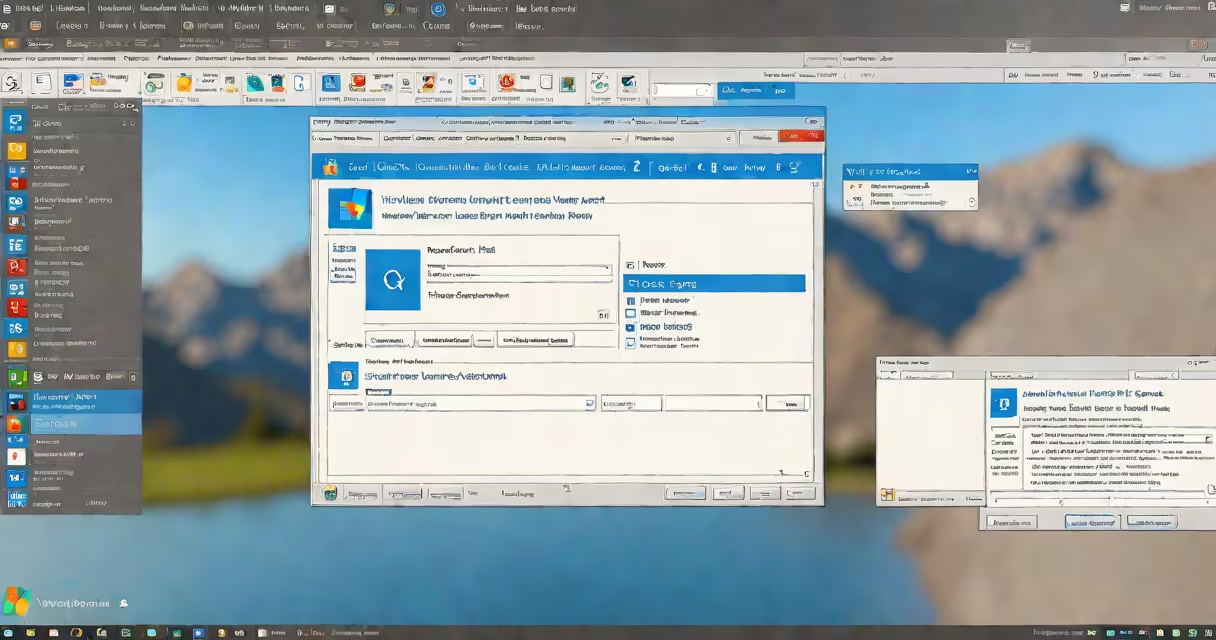
The winver run command opens a graphical window displaying your current Windows operating system version, build number, and edition. It's a built-in diagnostic tool accessible via the Run dialog, requiring no installation or external software.
When you enter winver in the Run dialog (opened with Win+R), Windows launches a small pop-up window showing the OS name, version number (like 22H2), build number (such as 22621), and product ID. This information is pulled directly from the system registry and is consistent across all editions of Windows 10 and 11.
Unlike command-line tools such as systeminfo or ver, winver doesn't output raw text-it presents structured, human-readable data. It's ideal for users who need to verify their OS version quickly, especially when troubleshooting software compatibility issues or confirming system updates.
winver is a native Windows executable located at C:\Windows\System32\winver.exe. When invoked through the Run dialog, it accesses the Windows Registry key HKEY_LOCAL_MACHINE\SOFTWARE\Microsoft\Windows NT\CurrentVersion to retrieve version-specific values like ProductName, CurrentBuild, and UBR (Update Build Revision).
It does not require administrator privileges. Running it as a standard user displays the same information as when run elevated. The tool is designed solely for display-not for scripting or automation. It cannot be used in batch files or PowerShell scripts to extract data programmatically.
For example, if you're installing a software package that requires Windows 10 version 21H2 or later, running winver shows whether your system meets the requirement. A version number like "10.0.19044" confirms you're on a supported release.
While winver is the simplest way to view version details, other methods exist depending on your goal. Here's how they compare:
| Method | Command/Action | Output Format | Best For |
|---|---|---|---|
winver |
Run dialog → enter winver |
Graphical window with version, build, and edition | Quick visual verification |
systeminfo |
Open Command Prompt → type systeminfo |
Text-based list including OS name, version, architecture, and uptime | Detailed system inventory |
ver |
Command Prompt → type ver |
Simple string: "Microsoft Windows [version]" | Basic OS detection in scripts |
| Settings app | Settings → System → About | Formatted UI with version, build, and device specifications | Non-technical users |
Each method serves a different purpose. winver is fastest for confirmation. systeminfo provides deeper context. ver is minimal and suitable for batch processing.
Many users assume winver shows the latest Windows update status. It does not. The tool reflects the installed OS version, not whether optional updates have been applied. For example, a system showing version 22H2 may still be missing security patches available through Windows Update.
Another frequent error: mistaking the build number for the release version. Windows 11 23H2 is officially version 10.0.22621, but some third-party tools report only "22621" as the version. Always cross-check the full version string (e.g., "10.0.22621.3205") to avoid confusion.
A lesser-known fact: winver is not available in Windows Server editions. The executable exists but returns an error when launched. For server environments, use systeminfo or PowerShell's Get-ComputerInfo cmdlet instead.
I once encountered a support ticket where a user reported that a legacy accounting application failed to launch on Windows 11. The error message was generic: "This program requires a newer version of Windows."
I asked them to run winver via Win+R. The result showed "Windows 11, version 23H2 (OS build 22621.3205)". The software required Windows 10, version 21H2 or higher. The user was actually on a supported version.
Further investigation revealed the app used a registry check that looked for specific subkeys under HKEY_LOCAL_MACHINE\SOFTWARE\Microsoft\Windows NT\CurrentVersion. One key was missing due to a failed update. The issue wasn't the OS version-it was a corrupted registry entry. Using winver confirmed the OS was correct, narrowing the problem to configuration.
Use winver when you need a quick, accurate, and visually clear confirmation of your Windows version. It's ideal for remote support scenarios, help desk workflows, or when verifying compliance with software requirements.
Do not use it for scripting. It returns no exit codes, and its output cannot be parsed by automation tools. For those cases, use systeminfo | findstr /i "version" in a batch file or PowerShell's $PSVersionTable.PSVersion for version comparisons.
Also, avoid relying on winver for enterprise reporting. It doesn't integrate with tools like Microsoft Endpoint Manager or SCCM. For centralized tracking, use wmic os get caption, version, buildnumber or PowerShell's Get-WmiObject.
Despite its simplicity, winver remains a reliable tool. According to Microsoft's official documentation, it has been included since Windows 2000 and continues to function unchanged in modern releases. It's one of the few commands that hasn't changed in over two decades.
For users who frequently work with system versions, knowing how to use the winver run command saves time and prevents misdiagnosis. It's a lightweight, secure, and consistent way to verify your environment-without needing admin rights or internet access.
Understanding the difference between winver and other system queries ensures you choose the right tool for the job. validating software compatibility, the winver run command delivers clarity in seconds.